
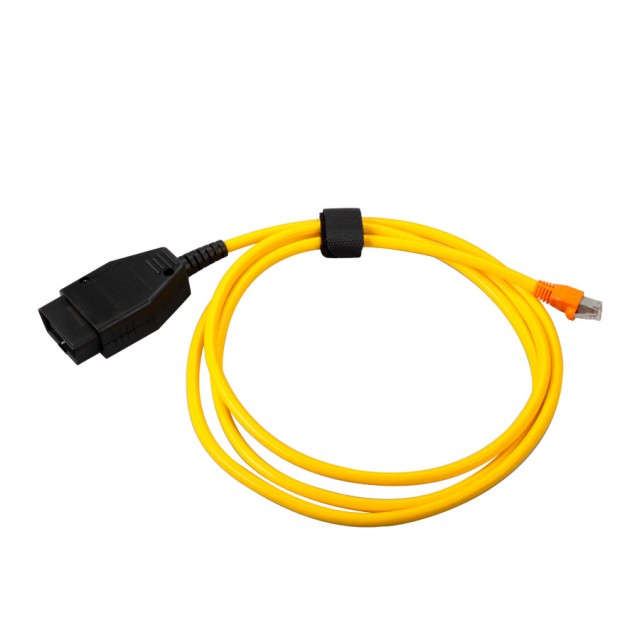
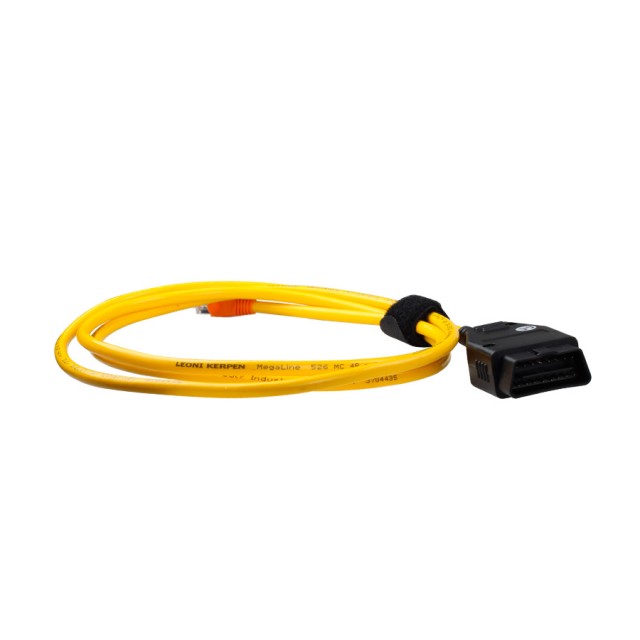
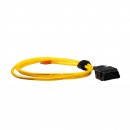
Tester diagnoza auto ENET Programari – Codari E-SYS 3.27.1 ISTA-D
Description
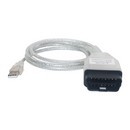
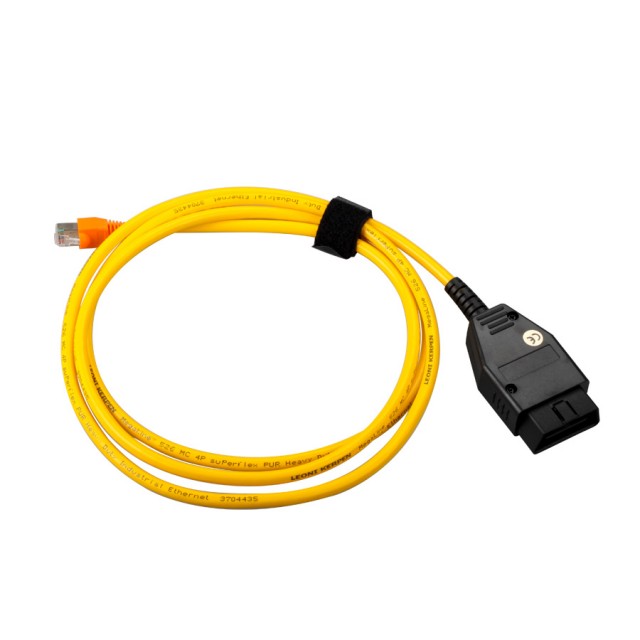
Cablul ENET este construit special pentru diagnoza si codarea autoturismelor marca cea mai cunoscuta din Romania, fiind necesar un transfer mare de date.
Cu acest cablu ENET veti putea diagnostica si coda multe optiuni suplimentare (exemplu Video in Motion) sau dezactiva optiuni deja existente (Exemplu Start Stop)
Functioneaza cu E-sys 3.27.1, ISTA-D si ISTA-P.
Compatibil cu TOATE tipurile de vehicule din seria F
Seria 1 F20, F21
Seria 2 F22
Seria 3 F30,F31, F34, F35
Seria 4 F32, F33
Seria 5 F07, F10, F11, F18
Seria 6 F06, F12, F13
Seria 7 F01, F02, F03, F04
X1 F48
X3 F25
X5 F15
X6 F16
* Daca achizitionati acest produs , puteti opta si pt AutoXData 2011 – 3.40 – 49 lei ; AutoXData 2014 – 3.45 – 99 lei ; VIVIDXWORKSHOP 2010 (lb. romana) 59 lei sau VIVIDXWORKSHOP 2015 (lb. romana) 99 lei.
How to install E-sys & EDIABAS, EST token, paszdata for F series coding
----------------------------------------------------------------------------------------------------
INSTALL E-SYS & EDIABAS
------------------------- ---------------------------------------------------------------------------
01) Run "E-sys\E-Sys_Setup_3_22_5_b34057.exe" to install program to default location "C:\EC-Apps\ESG" (i.e. "C:\EC-Apps\ESG\E-Sys\")
----------------------------------------------------------------------------------------------------
INSTALL E-SYS EST TOKEN (NOT INCLUDED)
----------------------------------------------- ----------------------------------------------------
- 05) Create subfolder "E-Sys EST" under "C:\ESysData\" (i.e. "C:\ESysData\E-Sys EST")
----------------------------------------------------------------------------------------------------
INSTALL PSdZData (NOT INCLUDED)
------------------------------------- ---------------------------------------------------------------
E-sys setup and copy TOKEN anywhere
01) Run "E-Sys_Setup.exe" to install program to "C:\EC-Apps\ESG\E-Sys\E-Sys.exe" (Install Password is "lo8F3lsVVg" if prompted)
02) Copy "EDIABAS" folder to "C:\EDIABAS"
03) Make sure "C:\EDIABAS\Bin\EDIABAS.INI" is set to Interface = ENET
(should already be set, but check anyway)
04) Copy "e-sys est" folder to "C:\ESysData\e-sys est"
05) Copy all "psdzdata" subfolders (all 7 Folders) to "C:\ESysData \psdzdata\folders_1-7"
06) Make sure that there is a "Dist" folder in each of the Chassis (F01/F10/F25) folders etc.
(e.g. "C:\ESysData\psdzdata\mainseries\F010\F010_12_03_5 11\odx\dist")
(should already be set, but check anyway - if not there - create empty "Dist" folders)
07) Turn Car's Auxillary Power On (Engine Off) and make connection to car with OBDII-Enet Interface Cable
(Wait a few minutes until the network adapter icon shows a Connection with the yellow exclamation point over it)
08) Launch "C:\EDIABAS\Hardware\ENET\ZGW_SEARCH.exe" to verify cable and connection are working
(IP Address, MAC Address, & VIN will be displayed verifying actual communication to the car)
(ZGW_SEARCH.exe works intermittently on 64-Bit Windows - Not necessarily a problem if the ZGW_SEARCH window is blank,
so long as the computer's wired network adapter shows an IP Address assigned to the computer from the car)
09) Run "C:\EC-Apps\ESG\E-Sys\E-Sys.exe" (It will take E-Sys a while to write the log file) and Under Options, Settings:
On the ODX Tab, set the ODX Rule Path to "C:\ESysData\Rules"
On the EST Tab, set the Developer-Soft-Token EST Path to "C:\ESysData\e-sys est\Code Away.est"
10) Hit the Connect Button on E-Sys
Selcect Target Vehicle (e.g. TargetSelector:Project=F010-12-03-511m VehicleInfo=F010)
11) Select Connection via VIN, and click Connect
(Window should pop up confirming successful connection)
(The program will remember the "connection via VIN" for future connections)
12) After connecting to the car, each time you launch E-Sys, and Read / Code an ECU the first time, you will need the E-Sys PIN, which is 2690.
Details
What customers are saying
Recommended products
-
Interfata diagnoza ISTA PRO K+CAN versiunea noua profesionala 2022RON 603.79 RON 785.29RON 499.00 (VAT excluded)
-
Interfata diagnoza auto ISTA PRO K+CAN versiune profesionala 2022RON 569.00 RON 761.09RON 470.25 (VAT excluded)
-
Interfata de diagnoza INPA K+CAN - Interfata dedicata unimarcaRON 135.00 RON 160.00RON 135.00 (VAT excluded)
-
HaynesPro Launch Professional Database X431 Turisme&Camioane 12 luni&12 luni, full acces in limba RomanaRON 242.00 RON 304.03RON 200.00 (VAT excluded)
-
Promotie ! Interfata diagnoza ISTA PRO K+CAN versiunea noua profesionala 2022RON 563.12 RON 785.29RON 465.39 (VAT excluded)
-
Tester auto profesional Autel MaxiCOM MK900-BT MK900BT Instrument de diagnosticare service auto multimarca, Suporta DoIP/CAN FD și funcții de testare a baterieiRON 2,999.00 RON 3,699.00RON 2,999.00 (VAT excluded)
-
Interfata VCDS/VAGCOM REAL HEX V2 ARM STM32F405 Update Online Engleza, Romana acces la platforma MQBRON 603.79 RON 712.69RON 499.00 (VAT excluded)
-
NOU ULTIMA VERSIUNE 2022 !!! Interfata, Tester, Diagnoza Opel Op-com NATIV 2021 Engleza (Full Acces Inclus)RON 591.69 RON 833.69RON 489.00 (VAT excluded)
-
Nou !! VCDS/VAGCOM HEX V2 Interfata diagnoza Update 2025, Ultima Versiune Existenta!RON 277.09 RON 470.69RON 229.00 (VAT excluded)
-
Tester auto profesional Vag/VCDS VERSIUNE Noua in Limba Romana + Laptop Full Activat, dedicat VW, Audi, Skoda si SeatRON 929.00 RON 1,329.79RON 929.00 (VAT excluded)